
Creating presentations is one of the most time-consuming tasks in modern work life. Studies show that the average professional spends 6-8 hours crafting a 20-slide deck, with 80% of that time wasted on repetitive tasks like formatting, finding images, and adjusting layouts. But in 2026, AI tools have completely transformed this workflow—you can now go from zero to a polished, professional presentation in just 30 minutes.
This comprehensive guide will walk you through the entire process of using AI presentation tools, even if you have zero design experience. We'll cover tool selection, step-by-step workflows, and real-world examples that will help you create presentations that impress your audience every single time.
Why AI Tools Make Presentation Creation 10x Faster
Traditional presentation creation is plagued by three major pain points: content organization takes forever, design and layout consume hours, and finding the right visuals feels impossible. AI tools solve all of these problems through three core capabilities that fundamentally change how we work.
Intelligent Content Generation: Simply input your topic and basic requirements, and AI automatically generates a complete outline with content for every slide. It understands presentation logic and organizes information hierarchically, ensuring your narrative flows naturally. For example, when you input "2026 Marketing Strategy Report," the AI automatically structures it into market analysis, competitive landscape, strategic initiatives, and expected outcomes—all the standard sections you'd expect in a professional business presentation.
Automated Design and Layout: AI presentation tools come with thousands of professionally designed templates and can automatically select the most appropriate layout for each type of content. Text-heavy slides get multi-column layouts, data slides automatically generate charts and graphs, and key points are highlighted with visual elements. Most importantly, the entire deck maintains consistent colors, fonts, and spacing without any manual adjustment on your part.
Smart Asset Matching: When images are needed, AI automatically searches for and inserts relevant photos, icons, and graphics based on your slide content. These assets are carefully curated to ensure both visual quality and thematic relevance. Some advanced tools even support AI image generation, creating unique custom illustrations specifically for your presentation.
According to real-world testing, AI tools can reduce presentation creation time from an average of 6 hours down to 30-45 minutes—an efficiency gain of over 80%. Even better, the initial draft quality often exceeds manually created presentations because AI strictly follows design principles and never produces inconsistent layouts or formatting errors. citation citation
The 3 Best AI Presentation Tools in 2026
The market now offers over 30 AI presentation tools, but only a handful are truly worth your time. After extensive hands-on testing, we recommend these three tools for different use cases:
Gamma - The Best All-Around Choice for Beginners
Core Strengths: Gamma is the most popular AI presentation tool in 2026, with over 70 million users worldwide. Its biggest advantage is "zero barrier to entry"—you need absolutely no design knowledge, just the ability to type. If you can write an email, you can create professional presentations with Gamma.
Gamma uses a "card-based" editing system where each slide is an independent content card that you can arrange like building blocks. Its AI generation quality is exceptionally high, capable of understanding complex business scenarios and producing content with clear logic and professional language. What sets Gamma apart is its ability to switch output formats with one click—the same content can be exported as a PowerPoint file, a webpage, or a PDF document, adapting to different presentation scenarios.
Free Tier: New users receive 400 AI credits upon registration, enough to generate 3-5 complete presentations. After that, you can create 1 presentation per month for free.
Best Use Cases: Business reports, project proposals, teaching materials, product introductions. Particularly suited for situations requiring quick turnaround with moderate design requirements.
Real-World Testing: We used Gamma to generate an "AI Tools Market Analysis Report" and went from topic input to finished draft in just 8 minutes, producing 18 slides with complete content and professional layouts. The only drawback is that some animation effects may be lost when exporting to PowerPoint format. citation citation
Beautiful.ai - The Premium Choice for Visual Excellence
Core Strengths: If you have high standards for visual presentation, Beautiful.ai is your best option. Its design engine is incredibly powerful—every slide it generates looks like the work of a professional designer, with sophisticated color schemes, refined layouts, and strong visual impact.
Beautiful.ai launched its "Context-Aware Workflow" feature in March 2026, representing the most advanced AI generation mechanism available: it first generates a text outline for your review, then proceeds with visual design only after confirmation. This "content-first, design-second" approach ensures the final product is both accurate in content and outstanding in visuals.
Another unique advantage is PowerPoint compatibility. Beautiful.ai presentations can be perfectly exported to PPTX format with all design elements and animations preserved—critical for users who need to work within traditional Office environments.
Pricing: Beautiful.ai doesn't offer a free plan. The basic tier costs $12/month and the professional tier $40/month, but a 14-day free trial is available.
Best Use Cases: Investor pitches, brand launches, executive presentations, client proposals—any situation demanding exceptional visual quality.
Real-World Testing: Creating the same market analysis report with Beautiful.ai took about 12 minutes, and the visual quality was indeed more polished than Gamma, especially in charts and data visualization. However, the higher price point makes it better suited for enterprise users with budget. citation citation
Microsoft Copilot - The Natural Choice for Office Users
Core Strengths: If your work environment primarily uses Microsoft Office, PowerPoint's built-in Copilot is the most seamless choice. It integrates directly into PowerPoint and can pull from Word documents and Excel data to generate presentations.
Copilot's biggest advantage is "data connectivity." For example, if your quarterly sales data lives in an Excel spreadsheet, you simply @mention that file in PowerPoint and Copilot automatically reads the data and generates visualized charts. This cross-application collaboration capability is unmatched by standalone AI tools.
The 2026 version of Copilot has been upgraded to the GPT-5.4 engine, with dramatically improved understanding and generation quality. It also supports brand customization, automatically applying your company's visual identity system (colors, fonts, logos) to ensure all presentations meet corporate standards.
Pricing: Requires a Microsoft 365 Copilot subscription at $30/month (includes AI features for Word, Excel, and the entire Office suite).
Best Use Cases: Internal company reports, data-driven analysis presentations, projects requiring multi-person collaboration.
Real-World Testing: Copilot's generation speed is slightly slower (about 15 minutes), but if your source materials are already in the Office ecosystem, overall efficiency is actually highest. Plus, generated presentations fully comply with PowerPoint standard formats, making post-generation editing extremely convenient. citation citation
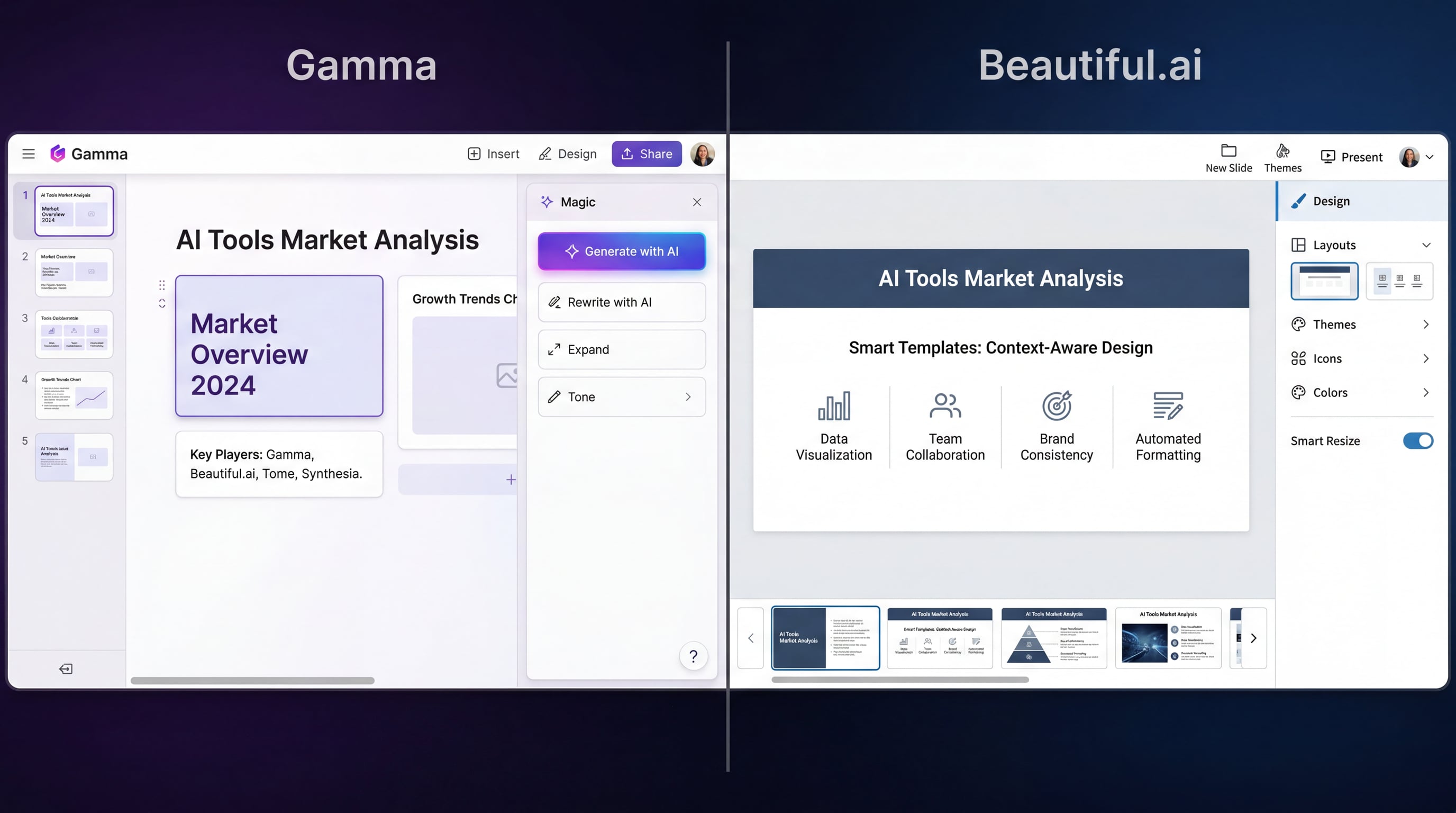
Side-by-side comparison of Gamma's card-based editor (left) and Beautiful.ai's context-aware workflow (right)
Quick Comparison Table
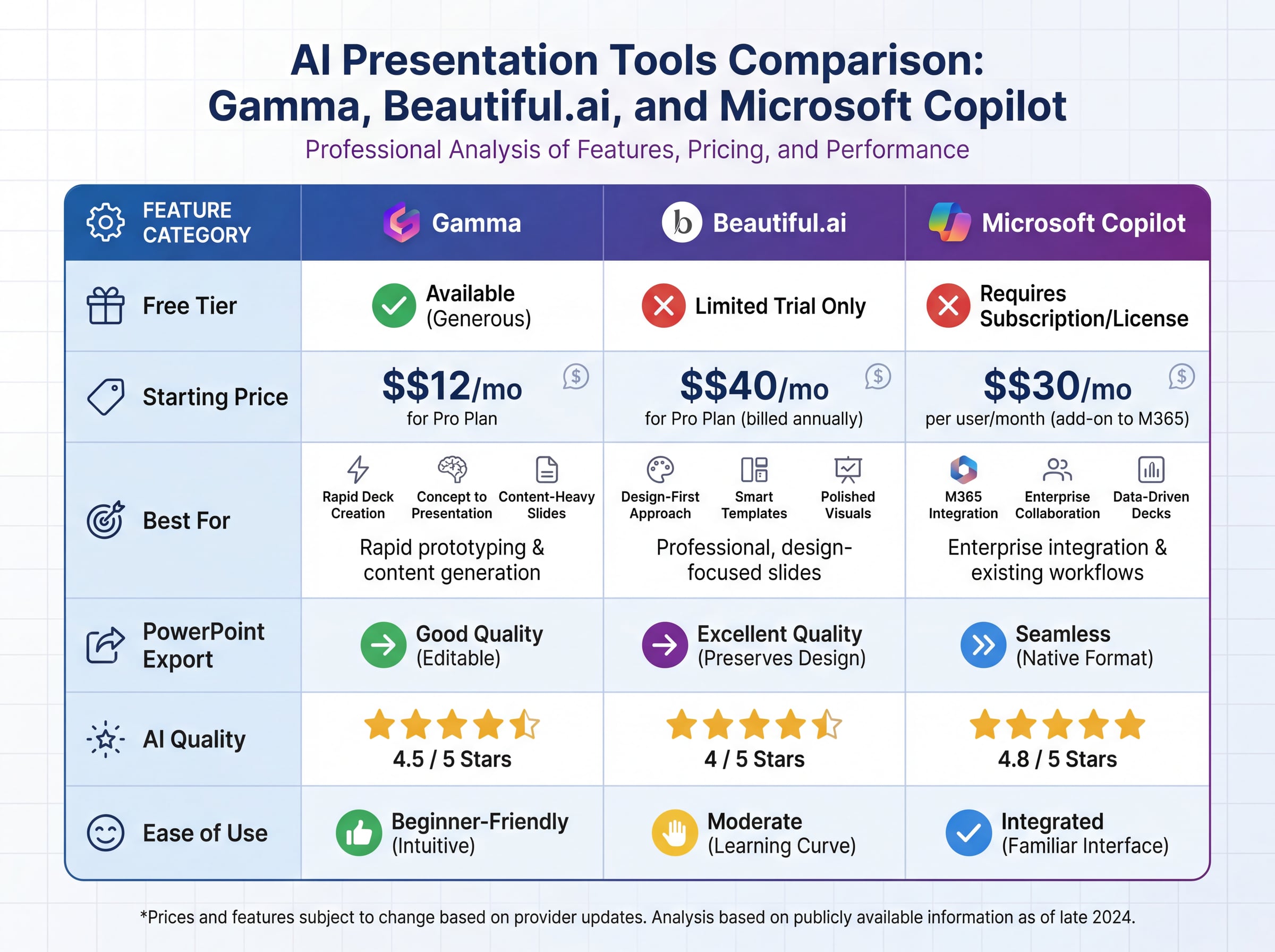
Feature comparison of the top 3 AI presentation tools in 2026
30-Minute Workflow: From Zero to Professional Presentation
Now let's walk through the complete creation process using Gamma. We chose Gamma because it's free, user-friendly, and produces excellent results—perfect for beginners getting started. The entire process breaks down into 5 steps, each with detailed instructions and practical tips.
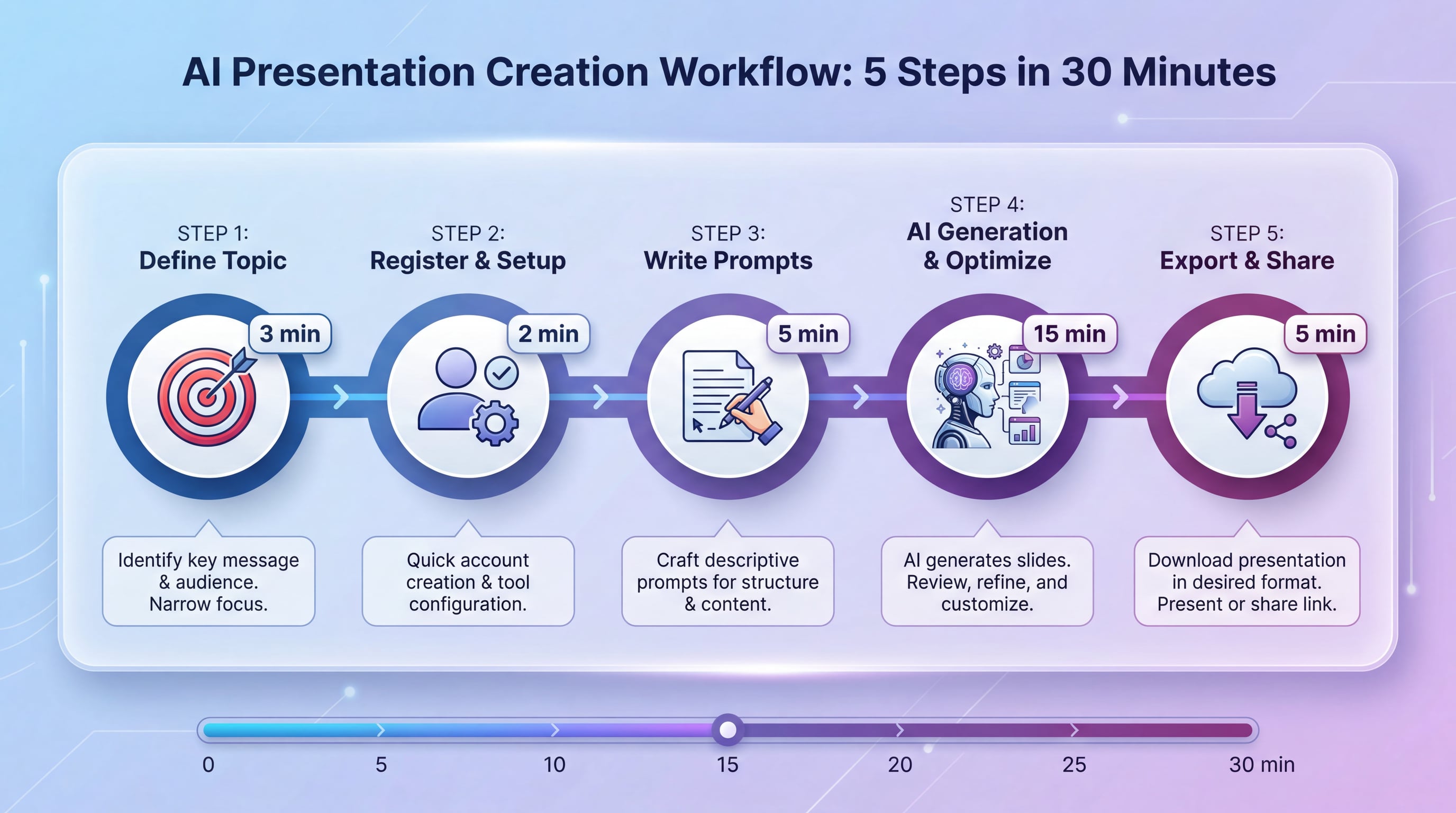
The complete 5-step workflow to create professional presentations with AI in just 30 minutes
Step 1: Define Your Topic and Objectives (3 minutes)
Before opening any tool, spend 3 minutes thinking through three critical questions:
-
What is the core purpose of this presentation? (Persuade, report, teach, showcase)
-
Who is your target audience? (Boss, clients, colleagues, students)
-
What are the 3 key messages you want your audience to remember?
Write down your answers—they'll become your "prompt framework." For example:
-
Purpose: Introduce our AI tool product to investors
-
Audience: Early-stage investment firms
-
Key messages: Large market size, strong technical moat, clear business model
With this framework, AI-generated content will be more precise and targeted.
Step 2: Register and Create Your Project (2 minutes)
Visit gamma.app and register with your email (Google account single sign-on is supported). After registration, you'll see the main interface. Click the "Create new" button in the upper right corner and select "Presentation" mode.
Gamma will ask how you want to start:
-
Paste in text: If you already have a text outline or document, paste it directly
-
Generate: Let AI start from scratch (recommended for beginners)
-
Import file: Upload an existing PowerPoint or PDF file for transformation
We'll choose "Generate" to enter AI generation mode.
Step 3: Write High-Quality Prompts (5 minutes)
This is the most critical step in the entire workflow. Prompt quality directly determines the quality of generated results. A complete prompt should include these elements:
Basic Framework:
Topic: [Specific presentation topic]
Target Audience: [Who will view this presentation]
Slide Count: [Recommend 15-25 slides]
Content Focus: [Key sections that must be included]
Style Preference: [Professional/Creative/Minimal/Tech-focused]
Real-World Example:
Let's say we're creating a "Product Introduction for an AI Tools Directory Website." Here's how to write the prompt:
Create a product introduction presentation for potential partners, topic: "TopAITools4U - The World's Leading AI Tool Discovery Platform"

Target Audience: Tech media, investment firms, industry partners

Content Structure (approximately 20 slides):
1. Opening: One-sentence introduction to who we are
2. Market Background: Explosive growth in the AI tools market
3. User Pain Points: Why a professional tool navigation platform is needed
4. Product Introduction: What services we provide (16 categories, smart recommendations, expert reviews)
5. Core Advantages: Differentiation from competitors (faster updates, more professional reviews, more detailed categories)
6. User Data: Traffic growth, user demographics, usage scenarios
7. Business Model: How we monetize (advertising, membership, affiliate commissions)
8. Development Roadmap: Product roadmap for the next 6 months
9. Partnership Opportunities: What we want to achieve together with partners
10. Closing: Contact information and call to action

Style Requirements: Modern tech aesthetic, use blue and purple gradients, no more than 3 bullet points per slide, heavy use of data and visual charts.
Prompt Writing Tips:
-
Specific beats vague: Don't write "introduce our company"—write "introduce TopAITools4U's three core functions as an AI tool navigation platform"
-
Specify slide count: Recommend 15-25 slides—too few won't tell the story, too many will fatigue the audience
-
Define style: Clearly state your desired visual style (professional business, creative playful, minimalist, etc.)
-
Provide data: If you have specific numbers or case studies, include them directly in the prompt—AI will automatically integrate them
After entering your prompt, click the "Generate" button and Gamma will start working.
Step 4: AI Generation and Quick Optimization (15 minutes)
Gamma typically takes 2-3 minutes to generate the initial draft. Once complete, you'll see a full presentation preview. Don't rush to export—spend 10-15 minutes on quick optimization:
Content Review:
-
Browse through each slide to confirm core information is accurate
-
Check for obvious factual errors or logical gaps
-
Look for duplicate content or slides that could be merged
Visual Adjustments:
Click any slide to enter edit mode, where you can:
-
Change templates: Click the "Theme" button on the left—Gamma offers dozens of professional templates with one-click switching for your entire deck's visual style
-
Adjust layouts: Each slide offers multiple layout options (left-right columns, top-bottom structure, centered display, etc.)—choose the one that best fits your current content
-
Modify text: Click directly on text boxes to edit, with support for bold, italic, lists, and other basic formatting
-
Replace images: Click an image and select "Replace image" to upload your own or have AI generate a new one
Data Visualization:
If a slide needs to display data, click the "Insert" button and select "Chart." Gamma supports:
-
Bar charts (for comparing data)
-
Line charts (for showing trends)
-
Pie charts (for showing proportions)
-
Tables (for detailed data)
Input your data directly into the table and charts will automatically generate matching your presentation's color scheme.
Practical Tips:
-
Maximum 3 bullet points per slide—split into two slides if you have more
-
Highlight important data with large font sizes
-
Insert an image or chart slide every 3-4 text slides to avoid visual fatigue
-
The final slide must have a clear "call to action" (contact information, next steps, etc.)
Step 5: Export and Share (5 minutes)
After optimization, click the "Export" button in the upper right corner. Gamma offers three export options:
1. PowerPoint Format (.pptx)
This is the most commonly used format, compatible with Microsoft PowerPoint and WPS. Note that:
-
Some of Gamma's animation effects may not perfectly translate to PowerPoint
-
Preview in PowerPoint after export to ensure no formatting errors
-
If you find layout issues, adjust to simpler layouts in Gamma before re-exporting
2. PDF Format
If you only need to share without allowing edits, PDF is your best choice. Benefits include:
-
All visual effects are perfectly preserved
-
Smaller file size, convenient for email
-
Opens on any device without requiring Office software
3. Web Link
Gamma's unique feature—generate an online link that viewers can access in their browser. This method is particularly suitable for:
-
Remote presentations (no file download required)
-
Mobile viewing (perfect display in phone browsers)
-
Real-time content updates (link content automatically syncs when you make changes)
After selecting your format, click "Download" and your file will download in seconds. Your professional presentation is complete!
Advanced Tips: Taking Your AI Presentations to the Next Level
Once you've mastered the basic workflow, these 5 advanced techniques will elevate your presentation quality even further:
Tip 1: Use "Staged Generation" for Better Precision
Don't try to generate a complete presentation in one shot. Instead, break it into parts and generate progressively. For example:
-
First generate just the outline (titles and section structure only)
-
Review the outline and adjust the order
-
Then have AI generate detailed content for each section
This method takes a few extra minutes but produces much higher quality because you maintain control at each stage.
Tip 2: Provide Reference Materials
If you have existing documents, reports, or webpages, provide them directly to the AI as references. Here's how:
-
Gamma: Choose "Paste in text" during generation and paste your document content
-
Copilot: Write "Generate presentation based on this Word document" in your prompt, then @mention your file
-
Beautiful.ai: Supports uploading PDFs or webpage links as content sources
With reference materials, AI-generated content will be much closer to your actual needs with dramatically improved accuracy.
Tip 3: Build Your Own "Prompt Template Library"
Save your commonly used prompts to create your own template library. For example:
-
Product introduction presentation template
-
Quarterly report presentation template
-
Training materials presentation template
-
Project proposal presentation template
Each time you use one, simply replace the specific product names, data, and case studies to quickly generate high-quality presentations. This method can boost your efficiency by another 50%.
Tip 4: Master the "Regenerate" Function
If you're not satisfied with a particular slide's generated result, don't manually edit it—click the "Regenerate" button instead. AI will reorganize the content and design in a different way, and usually after 3-4 attempts you'll get a satisfactory result.
This is faster than manual adjustment, and AI designs are often more professional than what you'd create yourself.
Tip 5: The "Three-Pass Check" Before Export
Before final export, check three times in this order:
First Pass - Content Check:
-
Any typos or grammar errors
-
Data accuracy
-
Logical coherence
Second Pass - Visual Check:
-
Is each slide too crowded or too sparse
-
Color consistency
-
Image clarity
Third Pass - Presentation Check:
-
Click the "Present" button and run through in presentation mode
-
Simulate a real presentation and check if time spent on each slide feels right
-
Verify smooth slide transitions
These three passes take just 5 minutes but will catch 90% of potential issues.
Common Problems and Solutions
In actual use, you may encounter these issues. Here are quick solutions:
Q1: AI-generated content is too generic and not specific enough—what should I do?
This results from insufficiently detailed prompts. Solutions:
-
Add specific data, case studies, and professional terminology to your prompt
-
Clearly specify your industry and business scenario
-
Provide reference documents or webpage links
For example, don't write "introduce our product advantages"—write "introduce TopAITools4U's three differentiation advantages compared to Product Hunt and There's An AI For That: update frequency (daily updates vs weekly updates), category granularity (16 subcategories vs 8 broad categories), Chinese language support (full Chinese interface vs English only)."
Q2: Generated presentation style doesn't match company requirements—what should I do?
Most AI tools support custom brand styling:
-
Gamma: Upload company logo and brand colors in settings—future presentations will automatically apply them
-
Beautiful.ai: Offers "Brand Kit" feature to save your company's visual identity system
-
Copilot: Automatically reads PowerPoint theme settings
If the tool doesn't support this, you can use AI to generate content and structure, then export to PowerPoint and manually apply your company template.
Q3: What do I do when free credits run out?
Money-saving strategies:
-
Register multiple accounts (using different emails)
-
Prioritize completely free tools (like Canva's AI features or Google's NotebookLM)
-
Use AI only for outline and content generation, complete design manually in PowerPoint
-
Share one paid account across your team (most tools support multi-user collaboration)
Q4: Exported PowerPoint format is messed up—what should I do?
This happens because AI tool design engines aren't fully compatible with PowerPoint. Solutions:
-
Select "simplified layout" option in the AI tool before export
-
Use PowerPoint's "Reset" function after export to restore standard formatting
-
If problems are severe, consider exporting directly to PDF format instead
Q5: AI-generated images are low quality or have copyright issues—what should I do?
Recommended solutions:
-
Use free stock photo sites (Unsplash, Pexels) to replace AI-generated images
-
Use AI image generation tools (Midjourney, DALL-E) to create custom images
-
Purchase commercial stock images (iStock, Shutterstock)
-
Use your company's own product screenshots and original photos
Real-World Case Studies for Different Scenarios
To help you better understand how to apply AI tools in actual work, here are three complete case studies for typical scenarios:
Case 1: Quarterly Business Report (For Your Boss)
Scenario: You're a marketing manager who needs to report Q2 results to the CEO.
Sample Prompt:
Create a Q2 2026 Marketing Department work report presentation for the company CEO and management team.

Content Structure (18 slides):
1. Cover: Q2 Marketing Summary
2. Table of Contents
3. Key Metrics Overview: Show 4 big numbers for key indicators (new users, revenue growth, market share, brand exposure)
4-6. Major Initiatives Review: Product launch, content marketing campaigns, channel expansion
7-9. Data Analysis: User growth trend charts, channel conversion rate comparisons, ROI analysis
10-11. Challenges and Issues: Difficulties encountered and response measures
12-14. Q3 Work Plan: Timeline and expected goals for 3 priority projects
15. Resource Requirements: Budget requests and staffing needs
16. Risk Alerts
17. Summary: 3 key conclusions
18. Q&A page

Style: Professional business style, use company standard blue, heavy use of charts over text, highlight 1 core data point per slide.
Key Techniques:
-
First slide must have a "one-sentence summary" (e.g., "Q2 exceeded targets with 150% new user growth")
-
Data slides use comparison charts highlighting growth trends
-
Problems section must be honest but paired with solutions
-
Leave a Q&A slide anticipating likely boss questions
Case 2: Client Product Demo (For Potential Customers)
Scenario: You're in sales and need to introduce your SaaS product to potential clients.
Sample Prompt:
Create a B2B client product demo presentation introducing our AI customer service system "SmartBot."

Target Customer: Small to medium e-commerce businesses currently facing high customer service costs, slow response times, and low customer satisfaction.

Content Structure (15 slides):
1. Opening: A pain point scenario ("It's 2 AM, a customer inquires online, but no one responds...")
2. Who We Are: One-sentence introduction to SmartBot
3. Customer Pain Points: 3 major problems with traditional customer service (high cost, low efficiency, poor experience)
4. Our Solution: How SmartBot solves these problems
5-7. Core Features Demo: Smart Q&A, multi-channel integration, data analytics (each feature with product screenshots)
8. Technical Advantages: AI engine, natural language understanding, continuous learning capability
9-10. Customer Case Studies: 2 real cases showing before/after data comparisons
11. Pricing Plans: Comparison table of 3 packages
12. Implementation Process: Timeline from contract to go-live
13. Customer Testimonials: 3-4 real customer quotes
14. Why Choose Us: Comparison with competitors
15. Next Steps: Call to action offering free trial

Style: Modern tech aesthetic, use blue and green, heavy use of product screenshots and real cases, avoid technical jargon.
Key Techniques:
-
Opening must be a pain point scenario customers can relate to
-
Feature descriptions should use "what customers get" language rather than "what we have"
-
Cases must have specific numbers ("60% reduction in customer service costs" is more persuasive than "significant cost reduction")
-
Pricing page should highlight the best value package
Case 3: Training Materials (For New Employees)
Scenario: You're in HR and need to create new employee onboarding training materials.
Sample Prompt:
Create a new employee onboarding training presentation, topic: "Company Culture and Work Processes"

Target Learners: Recent graduates and workplace newcomers with no knowledge of the company.

Content Structure (25 slides):
1. Welcome Page: Warm welcome message and team photo
2. Today's Learning Objectives
3-5. Company Introduction: Development history, business scope, team size
6-8. Corporate Culture: Mission, vision, values—use stories not slogans
9-11. Organizational Structure: Introduction to each department's functions
12-15. Work Processes: Attendance system, leave procedures, reimbursement process, communication norms
16-18. Common Tools: Usage guides for office software, internal systems, collaboration platforms
19-20. Career Development: Promotion paths, training opportunities
21-22. Employee Benefits: Compensation structure, leave policies, team building activities
23. FAQ
24. Your Mentor and Contacts
25. Closing: Encouraging words and welcome to the team

Style: Friendly and approachable, use warm colors (orange, yellow), heavy use of photos and icons, simple and easy-to-understand language.
Key Techniques:
-
Use conversational language, avoid corporate speak
-
Use real photos (office environment, team activities) to increase warmth
-
Process content should use flowcharts rather than blocks of text
-
Insert an interactive question or quiz every 5-6 slides to maintain learner attention
Conclusion: The New Paradigm of Presentation Creation in the AI Era
AI tools have completely transformed the rules of presentation creation. Now, someone with absolutely no design background can produce professional-grade presentations in just 30 minutes. But this doesn't mean human contribution is being replaced—quite the opposite. AI frees us from repetitive tasks so we can focus our energy on what truly matters:
-
Content Strategy: Thinking through the core objective of your presentation and how to move your audience
-
Logical Organization: Ensuring information is organized clearly and persuasively
-
Detail Optimization: Adding personalized case studies and data on top of AI-generated foundations
-
Presentation Skills: The presentation itself is just a tool—real presentation effectiveness depends on your delivery
Remember this golden rule: AI handles 80% of execution, you handle 20% of creativity and decision-making. That 20% is where your true professional value shines.
Take action now! Choose an AI tool that fits your needs and try creating a presentation following this guide. You'll discover that creating presentations can be this simple, this fast, and this rewarding.
Recommended Tool Quick Links
-
Gamma: View Gamma on TopAITools4U - Best for beginners, generous free tier
-
Beautiful.ai: View Beautiful.ai on TopAITools4U - Premium choice for visual excellence
-
Microsoft Copilot: View Microsoft Copilot on TopAITools4U - Natural choice for Office users
-
Canva AI: View Canva AI on TopAITools4U - Free and powerful alternative option
Want to discover more AI tools? Visit TopAITools4U to find more AI productivity boosters! We've curated 16 categories with hundreds of tested, high-quality AI tools, with daily updates featuring the latest tool reviews and tutorials.
Frequently Asked Questions (FAQ)
Q: Can I use AI-generated presentations commercially?
A: Most AI tools allow commercial use of generated content, but note: 1) Paid users typically have full commercial rights; 2) Free users may have usage restrictions; 3) AI-generated images may involve copyright issues—recommend replacing with licensed assets. Refer to each tool's terms of service for specifics.
Q: Which AI tool generates the most professional presentations?
A: There's no absolute "most professional"—it depends on your specific scenario: for business reports choose Beautiful.ai (most refined visuals), for quick turnaround choose Gamma (fastest), for enterprise internal use choose Copilot (strongest data connectivity). Recommend trying all to find what works best for you.
Q: Will AI tools replace presentation designers?
A: Not completely. AI excels at standardized design, but creative work, brand customization, and complex animations still require professional designers. AI is more like a designer's assistant, helping them improve efficiency.
Q: Is 30 minutes really enough?
A: For standard business reports, product introductions, and other routine presentations, 30 minutes is absolutely sufficient. But for highly customized brand launches or investor pitches, you may need 1-2 hours for deep optimization. The "30 minutes" in this article refers to time from zero to usable first draft.
Q: My industry is very specialized—can AI understand it?
A: Modern AI tools (especially those based on GPT-4/5) have decent understanding of most industries. The key is providing sufficient professional background and terminology in your prompts. If AI-generated content isn't professional enough, you can provide reference documents or use staged generation to gradually guide AI's understanding of your field.